How to Use Clipping Masks | Photoshop Tutorials 201
What are Clipping Masks?
Clipping masks are a fundamental tool in the Photoshop toolkit in that they control the visibility of a layer based on the content of a parented layer. The bottom layer (mask) controls the visibility of the top layer (clipped content).
Step 1 Import Layers
First thing is first, we need to bring in all the layers that we will need including the mask and the clipped content. Organization is key in this stage so we will want the top layer to be the content that we will be masking and the bottom layer to be the frame, which will be covered next.


Step 2: Create Target Layer
In this instance, we are pasting a screenshot of a webpage into a computer, so we can’t just create a clipping mask and call it a day. Our solution, create a “target” layer to be our mask. So in this stage we will draw out a rectangle over the screen and for the sake of visibility we will make the rectangle red.
Step 3: Create Clip Mask
Size and position the content layer appropriately. Once in position, right click or command/control click on the content layer and click “Create Clipping Mask”. As you will see the content now conforms to the target layer.
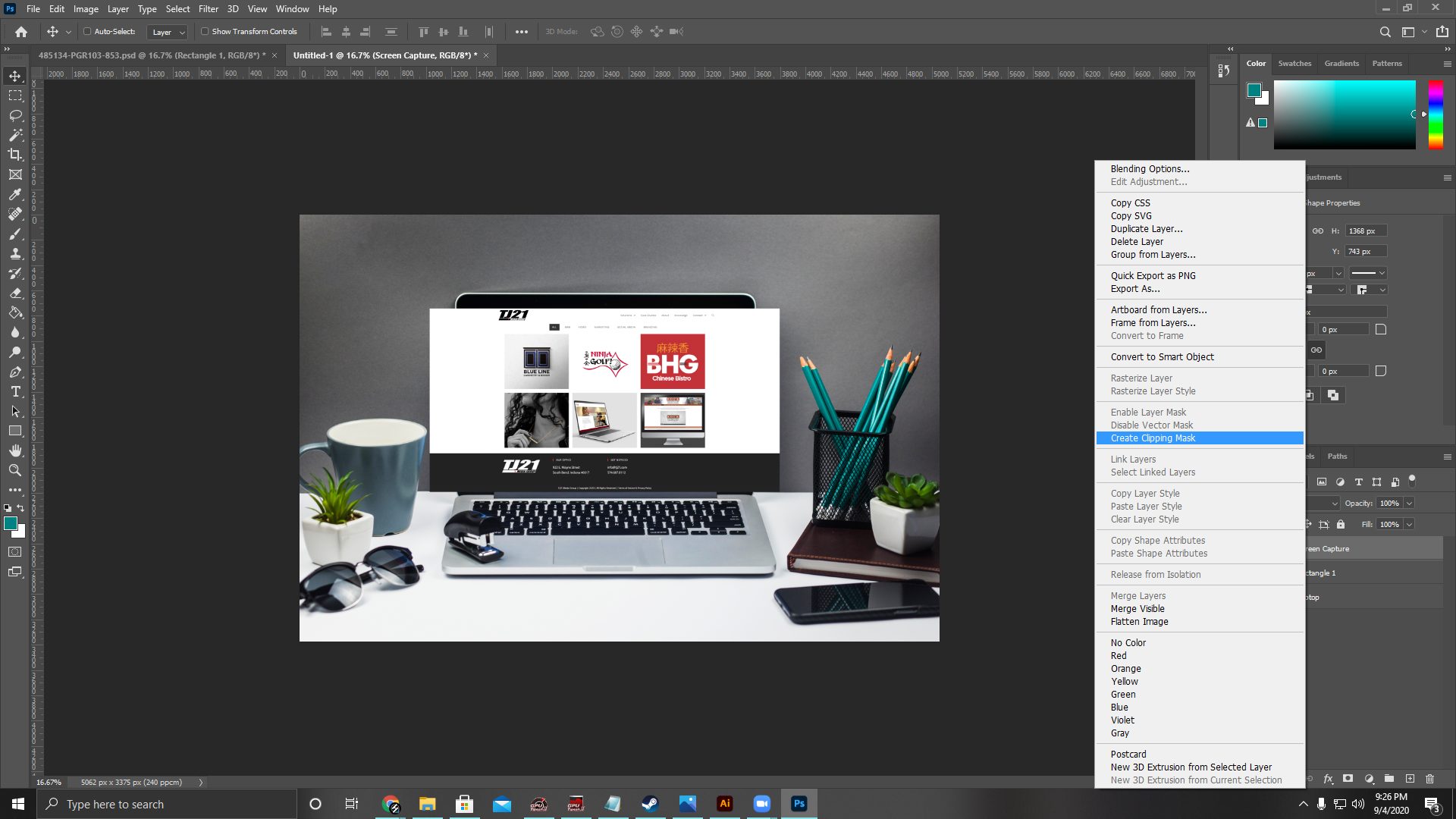

Step 4: Adjust Target Layer
Now, I always double check to make sure both my target layer and content layer are sized and positioned properly once everything is in place. In this instance we needed to adjust the size of both the target layer and content to fill the screen.